Logo
MINECRAFTBIBLE
Items
Items

All game items

Blocks
Blocks

Building blocks

Mobs
Mobs

Creatures & monsters

Biomes
Biomes

World biomes

Structures
Structures

Generated structures

Recipes
Recipes

Crafting guides

Advancements
Advancements

Achievements

Loot Tables
Loot Tables

Drop rates

Tags
Tags

Item groupings

All Versions
View all data →
Capes
Cape ArchiveNEW

Browse rare Minecon capes, OptiFine capes, and custom capes from players worldwide

Browse

Player Database
Player DatabasePopular

Search any player

Skin Browser
Skin Browser

Browse & download skins

Cape Gallery
Cape GalleryNEW

Minecon & OptiFine capes

Seed Vault
Seed Vault

Curated seeds

Learn

Guides
GuidesNew

Tutorials & tips

Blog
Blog

News & updates

Community

Community Hub
Community HubHub

Posts, discussions & more

All Versions
View community →
Seed Analyzer
Seed Analyzer

World seed analysis

Loot Explorer
Loot Explorer

Drop rates

Crafting Calculator
Crafting Calculator

Material planning

Enchant Calculator
Enchant Calculator

Probability math

Redstone Lab
Redstone Lab

Signal timing

Trading Profit
Trading Profit

Villager ROI

All Versions
View all tools →
Mods
Mods

Browse all mods

Plugins
Plugins

Server plugins

Resource Packs
Resource Packs

Textures & sounds

Shaders
Shaders

Visual enhancements

Datapacks
Datapacks

World logic

Scanner
Mod Intelligence

Scan & analyze any mod

All Versions
View all mods →
Loading...
IntroductionIntroductionVersion HistoryVersion HistoryGuidesGuidesBlog & NewsBlog & News
ItemsItemsBlocksBlocksMobsMobsRecipesRecipesBiomesBiomesStructuresStructuresAdvancementsAdvancementsLoot TablesLoot TablesTagsTags
ModsModsPluginsPluginsResource PacksResource PacksShadersShadersDatapacksDatapacks

MinecraftBible

The Ultimate Wiki

Logo
MINECRAFTBIBLE

The ultimate Minecraft reference. Every item, block, mob, and recipe documented with precision.

Community

  • Skin Browser
  • Cape Gallery
  • Seed Vault
  • Blog
  • Guides

Database

  • Items
  • Blocks
  • Mobs
  • Recipes
  • Biomes
  • Structures

Tools

  • Seed Analyzer
  • Mod Intelligence
  • Crafting Calculator
  • Enchant Calculator

Mods & Packs

  • Mods
  • Plugins
  • Resource Packs
  • Shaders
  • Datapacks

Site & Legal

  • About
  • Authors
  • Editorial Policy
  • Corrections
  • Contact
  • Privacy Policy
  • Terms of Service
  • DMCA
  • Sitemap

© 2026 MinecraftBible. Not affiliated with Mojang or Microsoft.

PrivacyTermsContact
Chestless Player Shop
PluginLicenseRef-All-Rights-Reserved

Chestless Player Shop

A new version of the Chest Shops WIHOUT THE CHESTS

45
Downloads
0
Followers
4 months ago
Updated
📦
1
Versions
economysocialstoragebukkitpaperspigot
Download Latestv1.0-SNAPSHOTView on Modrinth

📖About Chestless Player Shop

Chestless Player Shops

A fully virtual, GUI-driven player shop plugin for Paper 1.21.1+
Made by Niko


Overview

Chestless Player Shops lets players create and manage their own shops — no physical chests or signs required. Everything is handled through clean, paginated GUIs. Players set the item they want to sell, the item they want in return (as payment), and manage their stock virtually. Buyers browse all available shops from a single menu and purchase with one click.


Features

  • Virtual Shops — No physical blocks needed. Shops exist entirely in the plugin's database.
  • Custom Shop Icons — Each shop can have a unique icon visible in the shop browser.
  • Item-for-Item Trading — Payment is always an item, never money. Set exactly what you want in return.
  • Stock Management — Stock is tracked precisely. Items go out of stock when sold out.
  • Collection Bin — Earnings are stored safely in a virtual collection bin for the owner to claim at any time.
  • Out-of-Stock Alerts — Owners get notified in chat when an item goes out of stock, both live and on login.
  • Safe GUIs — Custom inventory locking prevents items from leaking into or out of menus.
  • Multiple Pages — Stock, collection bin, item list, and shop browser all support pagination.

Setup

Installation

  1. Download ChestlessPlayerShops-1.0-SNAPSHOT.jar.
  2. Place it in your server's plugins/ folder.
  3. Restart the server.

Commands

Command Description
/stores Opens the shop browser (same as /stores view).
/stores view Browse all available shops.
/stores manage Open your shop manager to create and edit your shops.
/stores create <name> Create a new shop directly from the command line.
/stores help Show all commands and a usage guide in chat.

Tab completion is supported for all subcommands.


Buying

  1. Type /stores or /stores view.
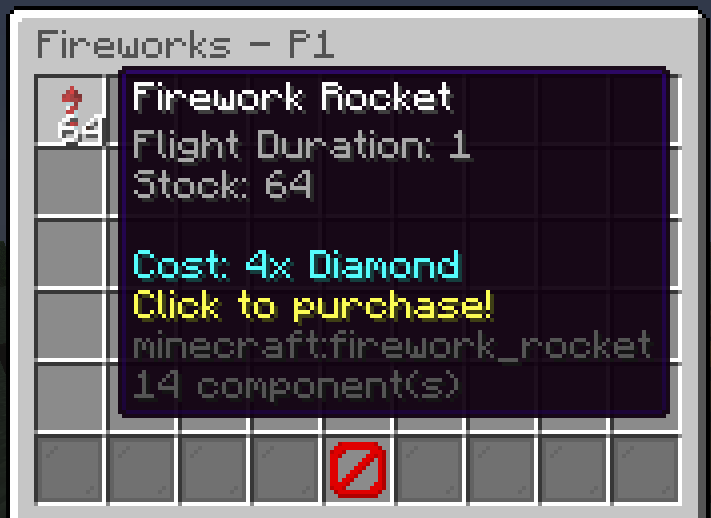
  2. Browse the list of shops — each shows the shop name and its cover icon.
  3. Click a shop to view its items.
  4. Hover over an item to see what it costs.
  5. Click an item to purchase it. If you have the payment item and enough inventory space, the trade happens instantly.

Shop Setup

Create Shop

  • Use /stores manage and click the Emerald Block (Create New Shop), or

Setup GUI

  • Use /stores create <name> directly in chat.
  • Shop names must be 3–16 characters, letters, numbers and spaces only.

Shop Icon (optional)

  • In your shop manager, click the Item Frame (Change Shop Icon).
  • Browse through all available Minecraft items across multiple pages.
  • Click any item to set it as your shop's icon in the browser.

Add Items

  • Click Manage Items → Add New Item (green block).

Add item

  • Follow the chat prompts:

    1. Hold the item you want to sell in your main hand and type the quantity per purchase (e.g. 64).
    2. Hold the item you want in return in your main hand and type the cost amount (e.g. 5).
  • Left-click an existing item → change its price.

  • Right-click an existing item → delete it (with confirmation). Remaining stock is moved to your Collection Bin.

Stock

  • Click Manage Stock → select the item you want to restock.
  • In the stock chest that opens:
    • Shift-click items from your inventory to deposit them.
    • Click the Hopper button (Import from Inventory) to deposit all matching items at once.
    • Left-click items in the chest to withdraw them back to your inventory.

Stock quantity is tracked numerically — the chest is virtual and has unlimited capacity.

Stock

Earnings

  • Click Collection Bin in your shop manager.
  • Click any item stack to collect it into your inventory.
  • Earnings accumulate here even while you're offline.

Delete Shop

  • Click Delete Shop in your shop manager.
  • You must empty your Collection Bin and remove all listed items first.

Alerts

Event Notification
An item's stock is sold out while you're online Chat warning + sound
You log in and any shop item is out of stock Chat summary + sound

Image of Store warning stock is low


Config

Config file: plugins/ChestlessPlayerShops/config.yml

max-shops-per-player: 3

messages:
  shop-created: "&aShop &e{name} &acreated!"
  shop-deleted: "&cShop &e{name} &cdeleted."
  shop-limit-reached: "&cYou have reached the maximum number of shops!"
  invalid-name: "&cInvalid name! Use 3-16 letters/numbers/spaces."
  not-enough-payment: "&cYou don't have enough {item} to buy this!"

📁 Data Storage

All shop data is stored as JSON files in:

plugins/ChestlessPlayerShops/data/<player-uuid>.json

Each file contains all shops owned by that player, including items, stock counts, and collection bin contents. Data is automatically saved after every transaction.


🔧 Compatibility

Property Value
Server Software Paper
Minecraft Version 1.21.1+
Java Version 21+
Dependencies None

Chestless Player Shops — Made by Niko

👥 Team & Contributors

N
NikothechaOwner

⚙️ Compatibility

Environment
🖥️ Server-side
Loaders
bukkitpaperspigot
Minecraft Versions
1.211.21.11.21.21.21.31.21.41.21.51.21.61.21.7+4 more

🔗 Links

Modrinth Page