

TFC: Real World
Earth-like world generator using real-world maps for terrain and climate, fully integrated with TerraFirmaCraft’s original content and progression
📖About TFC: Real World
TFC: Real World 🌍
Explore a World You Know
TerraFirmaCraft meets real-world geography! 🌄
Ever dreamed of surviving and thriving in a world that feels truly familiar? A world where vast oceans separate iconic continents, majestic mountain ranges scrape the sky, and sweeping deserts give way to frozen tundras - all governed by TFC's deep and authentic survival systems?
TFC: Real World makes that dream a reality. ✨
This mod reshapes your TFC world using the very layout of our own planet. Experience the ultimate exploration adventure on a grand, believable scale, where every journey feels like charting undiscovered territory on Earth itself - complete with TerraFirmaCraft's signature realism and progression. ⛏️🌱
What This Mod Does
TFC: Real World transforms the foundation of your world - not the gameplay. All the beloved TFC mechanics, resources, and challenges remain perfectly intact. What changes is the stage on which you play. 🗺️
Instead of random generation, the world's continents, mountains, oceans, and climate zones are guided by real-world data. This creates a uniquely immersive and logical geography for your survival saga.
🧭 Key Experiences & New Rules:
- Sail Across Familiar Waters: Navigate vast oceans and coastlines that mirror Earth's great seas. ⛵
- Conquer Legendary Peaks: Trek through towering mountain ranges and descend into deep oceanic trenches. 🏔️
- Traverse Global Climates: Journey from lush equatorial rainforests, through arid deserts and vast grasslands, into temperate woodlands, all the way to the frozen poles - each with TFC's authentic seasonal effects. ☀️❄️
- Discover Logical Landscapes: Find volcanoes where tectonic forces would place them, and experience climate transitions that make geographical sense. 🌋
The core TFC experience is unchanged. I simply use map data to tell the game where to place these incredible landscapes, making every world feel coherent, vast, and ripe for exploration.
⚙️ Technical Details & Configuration
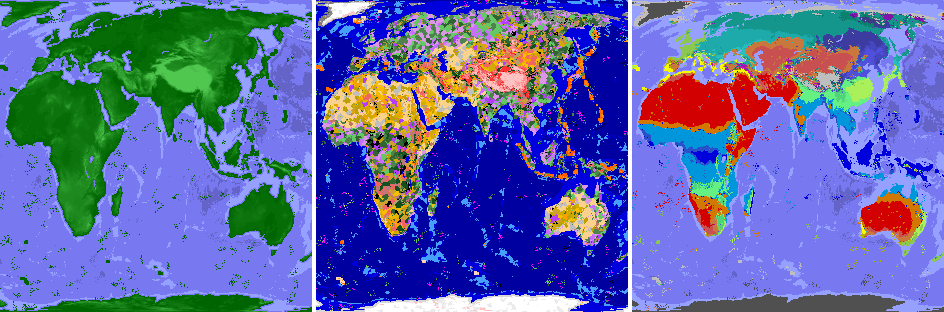
How It Works & Features 🏞️The mod works by replacing TFC's default noise generators with data sampled from customizable map images. This integrates seamlessly, letting TFC's rich procedural detail fill in the local terrain.
- Continent & Ocean Layout: Shaped by a world map image, creating Earth-like landmasses.
- Elevation & Depth: Real altitude data creates realistic mountains, plains, and ocean floors.
- Volcanic Activity: Hotspot maps guide the placement of TFC's volcanoes to tectonically plausible areas.
- Climate System: A Köppen climate map defines temperature and rainfall belts (tropical, arid, temperate, continental, polar), which TFC's existing systems use to create biomes.
- Non-Intrusive: No new blocks, items, or mobs. Uses Mixins to only redirect worldgen rules.
- Enhanced Canyon Biomes: Optional config to make canyon biomes purely erosional, removing volcanic features (1.21.1 only).
Important Version Notice: This configuration guide applies to TFC: Real World v4.0.3+ (1.21.1), v3.0.4+ (1.20.1), and v2.0.2+ (1.18.2). If you are using an older version, I strongly recommend updating to the latest version for access to these improved configuration options. Legacy versions use a different configuration system and are no longer supported with guides.
All configuration is accessible directly from the TFC world creation screen for easy adjustment. Advanced users can also modify the config files manually.
📋 Map Profiles
- Map Profile: Select which set of map images to use for world generation (e.g., Full World, Old World). The default profile contains all necessary Earth map data.
📍 Spawn Settings
Choose where you start your adventure:
- Spawn Mode:
GEOGRAPHIC: Spawn using real-world coordinates! Set a latitude and longitude.RANDOM: A random location determined by the world seed.CLASSIC: Use TFC's original coordinate-based spawning system.
- Geographic Spawn Center (Longitude/Latitude): When using
GEOGRAPHICmode, set the exact center of the area where you can spawn. The game will pick a suitable nearby location.
🎯 TFC Spawn Settings
TFC's original coordinate-based spawning options (used in CLASSIC mode):
- Classic Spawn Center (X/Z): When using
CLASSICmode, these TFC options define the center point for spawning. - Spawn Distance: Maximum spawn radius from the spawn center. Applies to both
GEOGRAPHICandCLASSICmodes.
🌿 Biome Modifications
- Canyons Not Volcanic: When enabled (default), removes volcanic rock and features from Canyon and Doline Canyon biomes, making them purely erosional landscapes.
⛰️ TFC World Parameters
Fine-tune familiar TFC world generation values.
- Flat Bedrock: If enabled, the bottom of the world is a single, flat bedrock layer.
- Finite Continents: If enabled, the world has a limited number of continents surrounded by a vast, deep ocean (1.21.1 only).
- Continentalness: Controls landmass size. Lower values = more fragmented land and islands. Higher values = larger, solid continents (if continents and altitude from map is disabled).
- Grass Density: Affects the amount of grass coverage globally (1.20.1+).
- Temperature Constant: A number representing the temperature for an entire world, where -1.0 is polar and 1.0 is tropical (if climate from map is disabled, 1.20.1+).
- Rainfall Constant: A number representing the rainfall for an entire world, where -1.0 is arid and 1.0 is tropical (if climate from map is disabled, 1.20.1+).
- Temperature Scale: The distance (in blocks) between the hottest and coldest climate zones (if climate from map is disabled).
- Rainfall Scale: The distance (in blocks) between the wettest and driest climate zones (if climate from map is disabled).
⚠️ Critical Scaling Settings
These two values are crucial for maintaining correct map proportions. They control how many Minecraft blocks represent the real-world data.
- Horizontal Scale: The radius of the world map in blocks.
- Vertical Scale: The height limit for terrain in blocks.
Important: The ratio between Horizontal Scale and Vertical Scale must match the original map data's aspect ratio. If these values are set to disproportionate sizes, the world will appear stretched or squashed. The default values are correctly calibrated.
🌐 World Generation Modes
Toggle which aspects of the world are shaped by real data. Disabling a mode will revert that feature to TFC's standard procedural generation.
- Generate Continents from Map: Shapes landmasses and oceans using the world map.
- Generate Altitude from Map: Creates realistic mountains, hills, plains, and ocean depth.
- Generate Hotspots from Map: Places TFC's volcanoes in tectonically plausible areas.
- Generate Climate from Map: Uses the Köppen climate map to create logical temperature and rainfall belts (tropical, arid, temperate, etc.).
💡 Quick Tips
- For an authentic Earth experience, keep all four
Generate ... from Mapoptions enabled. - Use Geographic Spawn to start in a specific country or near famous landmarks.
- Do not change
Horizontal ScaleorVertical Scaleunless you understand the map's proportions and want a deliberately distorted world.
This guide explains how to create custom map profiles for advanced users who want to generate worlds using their own geographic data.
🏗️ Map Profile Structure
Map profiles organize all the map images needed for world generation. Each profile must have a maps/ directory containing the required map files:
{namespace}/{profile_name}/
├─ maps/
│  ├── continent.png
│  ├── altitude.png
│  ├── hotspots.png
│  ├── koppen.png
│  ├── temperature.png
│  └── rainfall.png
└── settings.json
Profiles can be placed in two locations:
- Mod JAR resources:
data/tfc_real_world/profiles/{namespace}/{profile_name}/ - External config directory:
config/tfc_real_world/profiles/{namespace}/{profile_name}/(or as ZIP files in this directory)
External profiles take priority over JAR profiles with the same namespace and name.
🔧 Profile Settings (settings.json)
Each map profile requires a settings.json file that defines the profile's configuration. All fields are optional and will use default values if omitted.
Display Settings:
- Index (Integer, default:
2147483647): Display order in the profile selection list. Lower values appear first. - Lang (Object, default:
{}): Localized display names for the profile. Keys are language codes (e.g.,"en_us","ru_ru"), values are display strings.
Spawn Settings:
- Spawn Center Longitude (Double, default:
12.4964): Geographic longitude for the default spawn center (Rome, Italy). - Spawn Center Latitude (Double, default:
41.9028): Geographic latitude for the default spawn center (Rome, Italy).
Scaling Settings:
- Horizontal Scale (Integer, default:
40000): The radius of the world map in blocks. - Vertical Scale (Integer, default:
20000): The height limit for terrain in blocks.
Important: The ratio between horizontal_scale and vertical_scale should match your map's aspect ratio to avoid stretching or squashing.
Map Boundaries:
- West Edge Longitude (Double, default:
-170.0): Western edge of the map in degrees longitude. - East Edge Longitude (Double, default:
190.0): Eastern edge of the map in degrees longitude. - South Edge Latitude (Double, default:
-90.0): Southern edge of the map in degrees latitude. - North Edge Latitude (Double, default:
90.0): Northern edge of the map in degrees latitude.
Projection:
- Map Projection (String, default:
"EQUAL_EARTH"): Map projection type. Currently only"EQUAL_EARTH"is supported.
🖼️ Required Map Images
All maps must be PNG format and have identical dimensions. Maps should use an equal-area projection (e.g., Equal Earth) to maintain proper proportions.
Continent Map (continent.png): Defines landmass distribution and continental boundaries. Format: Grayscale PNG. Legend: 0 (black) = Ocean, 255 (white) = Land. This map shapes the basic layout of continents and oceans in your world.
Altitude Map (altitude.png): Defines terrain elevation and ocean depth. Format: Grayscale PNG. Legend: 0-127 = Ocean depth (darker = deeper), 128-255 = Land elevation (brighter = higher). Creates realistic mountains, hills, plains, and ocean floors. Example values: 0 = Deepest ocean, 64 = Shallow ocean, 128 = Sea level (coastline), 192 = Hills, 255 = Highest mountains.
Hotspots Map (hotspots.png): Defines volcanic hotspot locations and ages. Format: Grayscale PNG. Legend: 0 = No hotspot (age 0), 64 = Age 4 (oldest), 128 = Age 3, 192 = Age 2, 255 = Age 1 (youngest). Places TFC volcanoes in tectonically plausible areas.
Köppen Climate Map (koppen.png): Defines climate zones using the Köppen climate classification system. Format: RGB Color PNG. Each climate type has a specific RGB color that must match exactly.
Climate types and their RGB colors:
- AF (Humid Tropical):
(0, 0, 220) - AS (Tropical Dry/Wet):
(0, 100, 240) - AW (Tropical Wet/Dry):
(0, 150, 220) - AM (Tropical Monsoon):
(40, 80, 200) - BWH (Hot Desert):
(210, 0, 0) - BSH (Hot Semi-Arid):
(210, 120, 0) - BWK (Cold Desert):
(200, 80, 80) - BSK (Cold Semi-Arid):
(200, 120, 60) - CSA (Coastal Subtropical):
(250, 250, 0) - CSB (Coastal):
(180, 180, 0) - CSC (Cold Coastal):
(120, 120, 0) - CWA (Monsoonal Subtropical):
(100, 240, 130) - CWB (Monsoonal Temperate):
(80, 210, 120) - CWC (Cold Monsoonal Temperate):
(70, 160, 110) - CFA (Oceanic Subtropical):
(170, 240, 90) - CFB (Oceanic):
(140, 200, 80) - CFC (Cold Oceanic):
(110, 170, 70) - DSA (Coastal Continental):
(190, 20, 190) - DSB (Cold Coastal Continental):
(160, 20, 180) - DSC (Coastal Subarctic):
(130, 20, 170) - DSD (Coastal Cold Subarctic):
(100, 20, 160) - DFA (Continental):
(40, 190, 190) - DFB (Cold Continental):
(30, 170, 170) - DFC (Subarctic):
(20, 150, 140) - DFD (Cold Subarctic):
(10, 130, 110) - DWA (Monsoonal Continental):
(80, 80, 220) - DWB (Cold Monsoonal Continental):
(70, 70, 190) - DWC (Monsoonal Subarctic):
(60, 60, 160) - DWD (Cold Monsoonal Subarctic):
(60, 60, 130) - ET (Tundra):
(190, 190, 190) - EF (Polar):
(80, 80, 80)
Temperature Map (temperature.png): Provides temperature data used in conjunction with the Köppen map. Format: Grayscale PNG. Legend: 0 (black) = Coldest, 255 (white) = Hottest. Each Köppen climate zone interprets grayscale values within its own temperature range, so higher brightness indicates warmer temperatures for that specific climate type.
Rainfall Map (rainfall.png): Provides rainfall data used in conjunction with the Köppen map. Format: Grayscale PNG. Legend: 0 (black) = Driest, 255 (white) = Wettest. Each Köppen climate zone interprets grayscale values within its own rainfall range, so higher brightness indicates more rainfall for that specific climate type.
✅ Best Practices
Consistency: Ensure all maps align properly - continents should match altitude, climate should match temperature/rainfall patterns.
Smooth Transitions: Use gradual gradients rather than sharp boundaries to avoid visual artifacts in the generated world.
Sea Level: In the altitude map, keep the sea level boundary (128) consistent with your continent map - ocean areas should have values below 128.
Color Accuracy: For the Köppen map, use the exact RGB values provided. Even small deviations will cause the mod to use the nearest matching climate type.
Testing: Test your maps with a small world first to verify proportions and alignment before creating large-scale maps.
Map Dimensions: All maps in a profile must have identical width and height. Use an equal-area projection to maintain proper proportions across the entire map.
🏝️ Example: Creating a Simple Island Map
Here's a minimal example for creating a basic island map profile:
Continent Map: Create a 1280x640 grayscale image with most of the map at
0(ocean) and a circular island in the center at255(land).Altitude Map: Create a matching 1280x640 grayscale image with ocean areas at
64(shallow ocean), island edges at128(sea level), and island center at200(hills).Hotspots Map: Create a 1280x640 grayscale image with most areas at
0(no volcanoes) and a small hotspot on the island at192(age 2).Köppen Map: Create a 1280x640 RGB image using
(140, 200, 80)for CFB (Oceanic climate).Temperature Map: Create a 1280x640 grayscale image with a gradient from
120(cooler) at the edges to180(warmer) at the center, representing temperature variation across the island.Rainfall Map: Create a 1280x640 grayscale image with a gradient from
140(drier) at the edges to200(wetter) at the center, representing rainfall variation across the island.Settings: Create
settings.jsonwithhorizontal_scale=40000andvertical_scale=20000to match the 2:1 aspect ratio of the maps. Note that due to the 2:1, a circular island in your map will appear as an oval in the generated world.
All six maps must be exactly 1280x640 pixels and saved as PNG files in the profile's maps/ directory.
- A similar mod for vanilla Minecraft.
- A version with a larger and more detailed world map.
- Port the mod to TFC 1.12.2 (though this will be challenging).
📎 Links
If you have suggestions or want to report a bug, please create an issue and I will definitely respond.
Dive into the ultimate survival exploration mod for TerraFirmaCraft. Start your journey on a world that feels like home, yet is filled with endless discovery. 🚀