Logo
MINECRAFTBIBLE
Items
Items

All game items

Blocks
Blocks

Building blocks

Mobs
Mobs

Creatures & monsters

Biomes
Biomes

World biomes

Structures
Structures

Generated structures

Recipes
Recipes

Crafting guides

Advancements
Advancements

Achievements

Loot Tables
Loot Tables

Drop rates

Tags
Tags

Item groupings

All Versions
View all data →
Capes
Cape ArchiveNEW

Browse rare Minecon capes, OptiFine capes, and custom capes from players worldwide

Browse

Player Database
Player DatabasePopular

Search any player

Skin Browser
Skin Browser

Browse & download skins

Cape Gallery
Cape GalleryNEW

Minecon & OptiFine capes

Seed Vault
Seed Vault

Curated seeds

Learn

Guides
GuidesNew

Tutorials & tips

Blog
Blog

News & updates

Community

Community Hub
Community HubHub

Posts, discussions & more

All Versions
View community →
Seed Analyzer
Seed Analyzer

World seed analysis

Loot Explorer
Loot Explorer

Drop rates

Crafting Calculator
Crafting Calculator

Material planning

Enchant Calculator
Enchant Calculator

Probability math

Redstone Lab
Redstone Lab

Signal timing

Trading Profit
Trading Profit

Villager ROI

All Versions
View all tools →
Mods
Mods

Browse all mods

Plugins
Plugins

Server plugins

Resource Packs
Resource Packs

Textures & sounds

Shaders
Shaders

Visual enhancements

Datapacks
Datapacks

World logic

Scanner
Mod Intelligence

Scan & analyze any mod

All Versions
View all mods →
Loading...
IntroductionIntroductionVersion HistoryVersion HistoryGuidesGuidesBlog & NewsBlog & News
ItemsItemsBlocksBlocksMobsMobsRecipesRecipesBiomesBiomesStructuresStructuresAdvancementsAdvancementsLoot TablesLoot TablesTagsTags
ModsModsPluginsPluginsResource PacksResource PacksShadersShadersDatapacksDatapacks

MinecraftBible

The Ultimate Wiki

Logo
MINECRAFTBIBLE

The ultimate Minecraft reference. Every item, block, mob, and recipe documented with precision.

Community

  • Player Database
  • Skin Browser
  • Cape Gallery
  • Community Hub
  • Seed Vault

Database

  • Items
  • Blocks
  • Mobs
  • Recipes
  • Biomes
  • Structures

Tools

  • Seed Analyzer
  • Mod Intelligence
  • Crafting Calculator
  • Enchant Calculator

Mods & Packs

  • Mods
  • Plugins
  • Resource Packs
  • Shaders
  • Datapacks

© 2026 MinecraftBible. Not affiliated with Mojang or Microsoft.

PrivacyTermsContact
Shulker Box Labels
ModLicenseRef-All-Rights-Reserved

Shulker Box Labels

Give your shulker boxes an item label!

14.8K
Downloads
50
Followers
4 months ago
Updated
📦
25
Versions
managementstorageutilityfabricneoforge
Download Latestv3.4.2+1.21.11-neoforgeView on Modrinth

📖About Shulker Box Labels

Shulker Box Labels Large Title Text

Available for Fabric Available for NeoForge Required on Server & Client Vanilla Compatible, Vanilla clients can with this mod installed

Description

This mod allows you to add item labels to your shulker boxes, making your storage more organized and inventory management much easier.

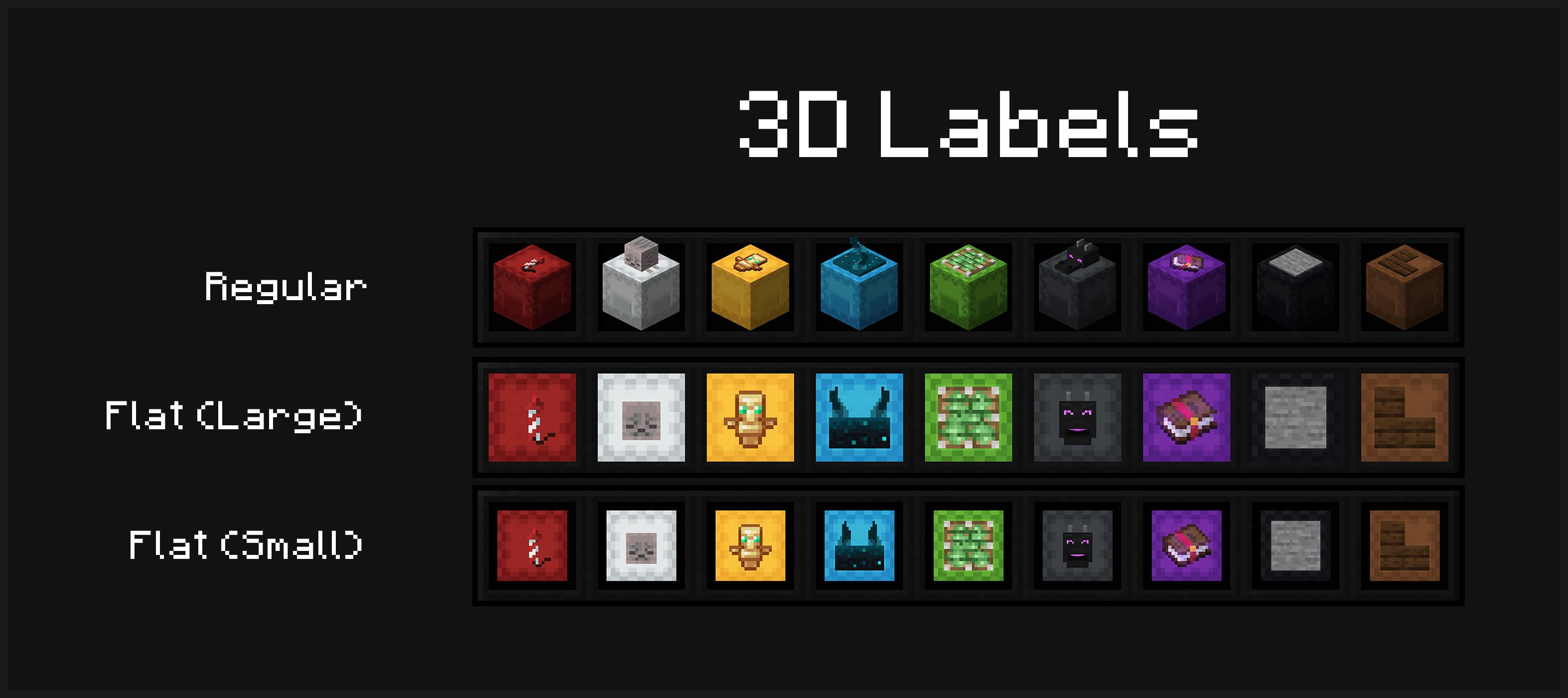
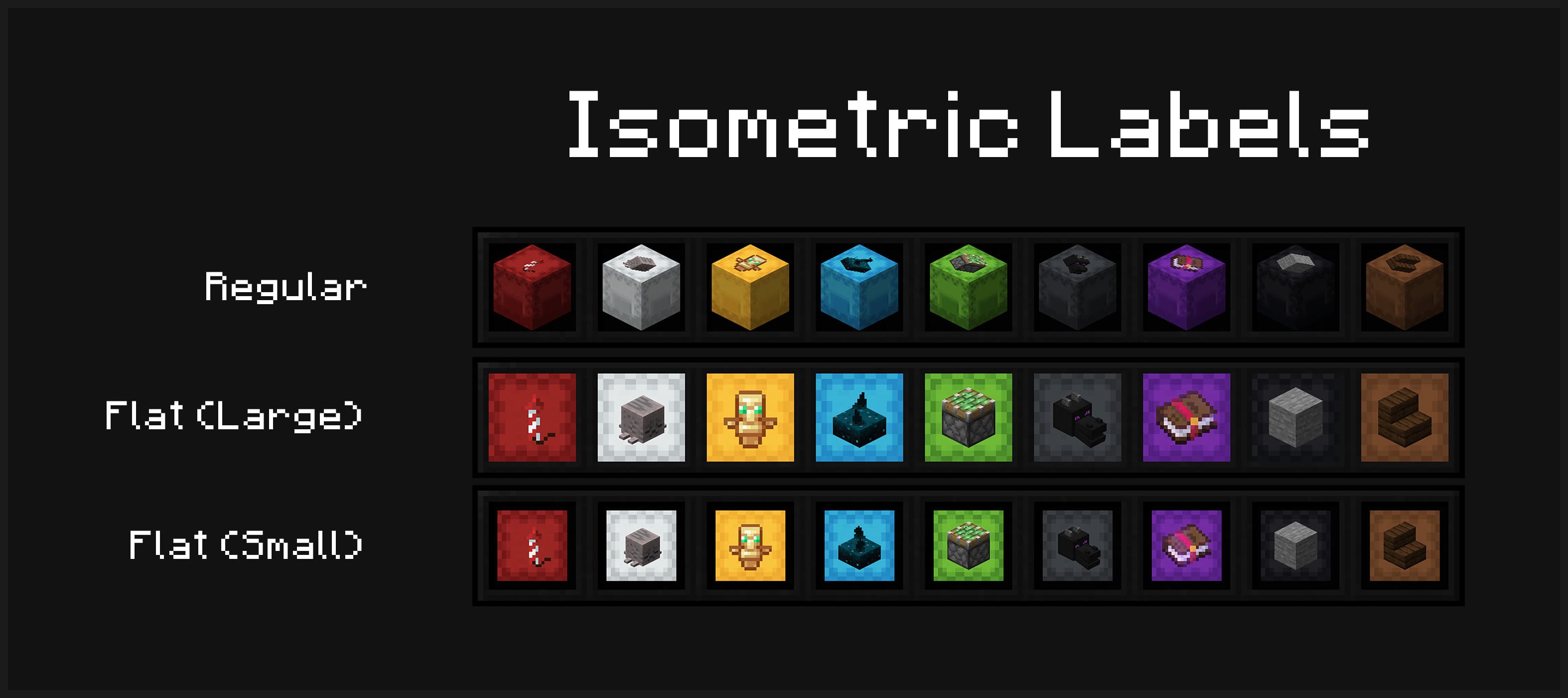
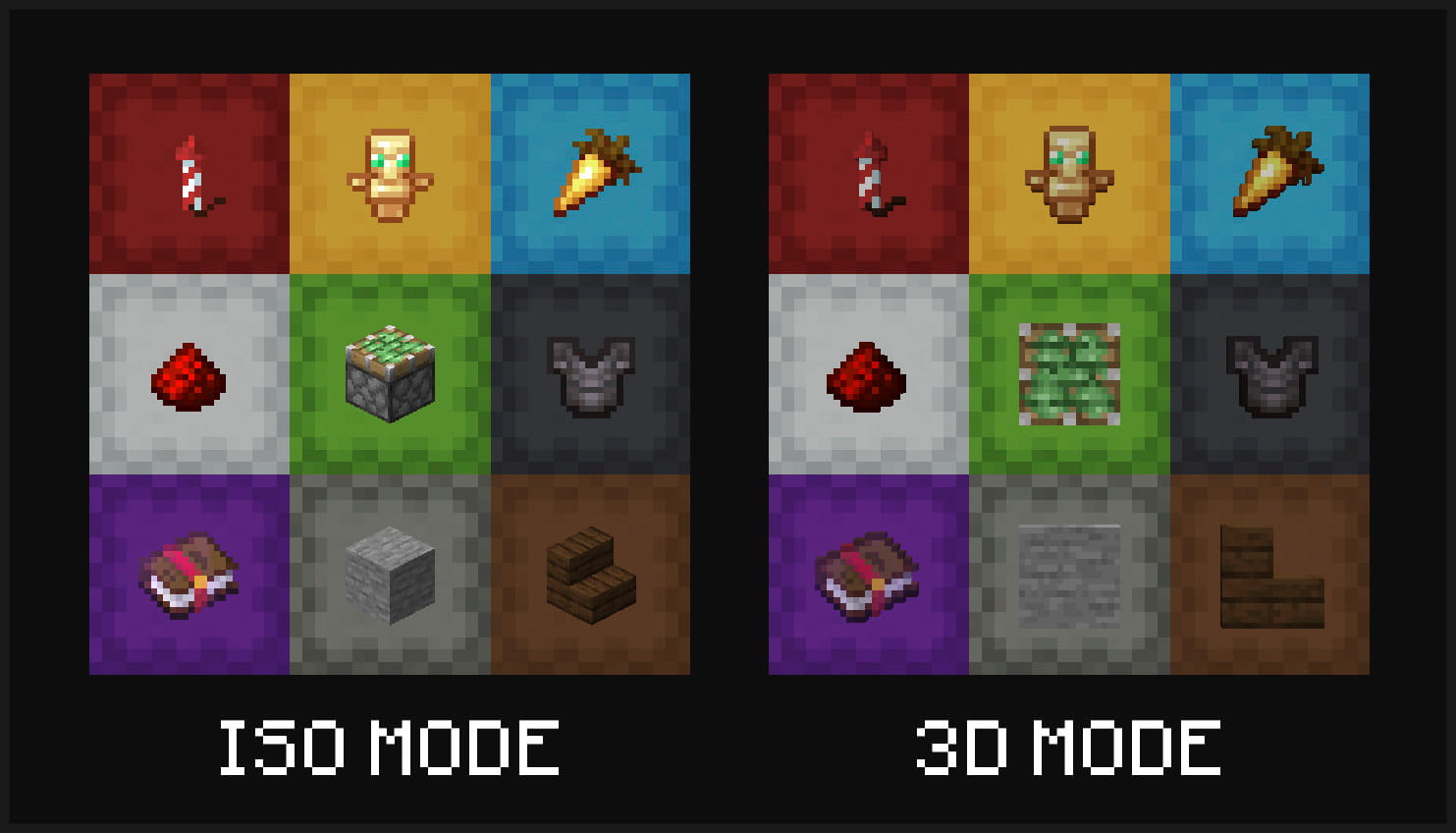
Multiple display modes are supported - you can have your shulker boxes displayed in flat mode, and choose to display labels in either 3D or isometric mode.

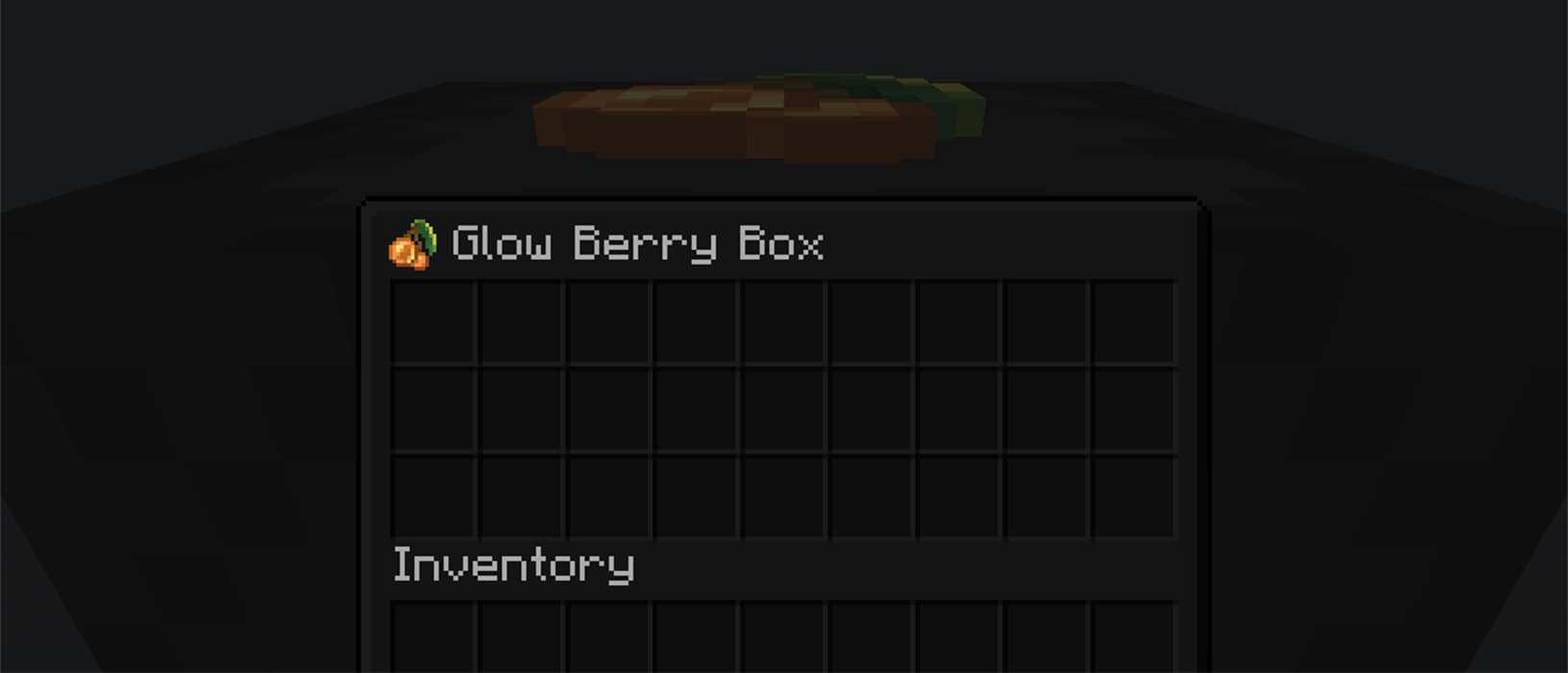
Display your labeled shulker boxes in the GUI in any mode. Labels can be shown in 3D or isometric mode, and shulker boxes can appear in regular or flat (large/small) mode Image showing the isometric display mode for regular, flat (large) and flat (small) shulker boxes Image showing the 3d display mode for regular, flat (large) and flat (small) shulker boxes Item labels on placed shulker boxes can also either display in isometric or 3D mode Image showing the different world display modes: isometric and 3D Optionally view your label from inside your shulker box Image showing a shulker box named 'Glow Berry Box' with a glow berry icon left of the title
Installation & Configuration

  • Download the mod for your Minecraft version and place it into your .minecraft's mods folder
  • In order to use this mod in multiplayer, it must also be installed server-side
  • To configure the mod to your liking, you can use the command /shulker-box-labels config to open the config screen in-game
    • If you are playing on Fabric, you can alternatively install Mod Menu and open it from there
    • NeoForge users can also open it from the integrated mod menu

Usage

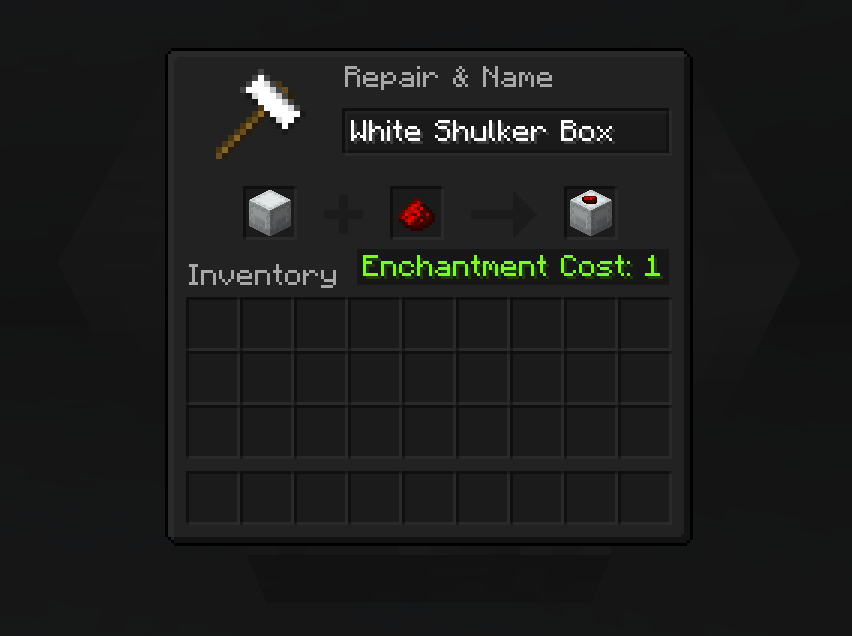
To apply a label, simply place your shulker box in the first anvil slot and the label item in the second slot. This costs one experience level. You can also modify the name of your shulker box at the same time.

Anvil Preview Image showing how to apply an item label in the anvil
👥 Team & Contributors

steveh259
steveh259Owner

⚙️ Compatibility

Environment
✅ Client & Server
Loaders
fabricneoforge
Minecraft Versions
1.21.11

🔗 Links

Modrinth Page