
MINECRAFTBIBLE
Loading...


A highly customizable and feature-rich grave data pack/mod

If you want an even more customizable and more sophisticated grave data pack, try out HyperGrave!
It isn't complete yet, so expect bugs!
You do not need a resource pack to use HyperGrave.
With this data pack (which is also packaged as a mod), instead of just yeeting your items out of your inventory, all of them will be stored inside a safe place called grave.
There are many mods and data packs that do this, but this one has way more features, has much higher quality and is more customizable.
Requires Sul4ur's global resource pack.
(Not if you're using the mod version)
Make sure the following gamerules are set:
This data pack might not be compatible with plugin loaders like Spigot, PaperMC, etc.
This data pack also has a mod version.
Your grave won't just spawn exactly where you died. There are a few conditions for a grave being made. Basically, your grave will try to find the nearest transparent block where there is a solid block below.
Graves are mostly invulnerable. They also have no hitbox, meaning you can easily walk through graves. Also, graves glow, so you can see them through walls. By default, graves despawn in 90 minutes.
After a grave spawns, The exact location of your grave will be announced to you. The announcement should look something like this:

Notice the 9 in Grave #9. That is the grave ID, and it's important. Keep that in mind; it can be useful in a lot of scenarios.
Note: If either the grave ID or the player's name doesn't appear here, make sure to report it immediately.
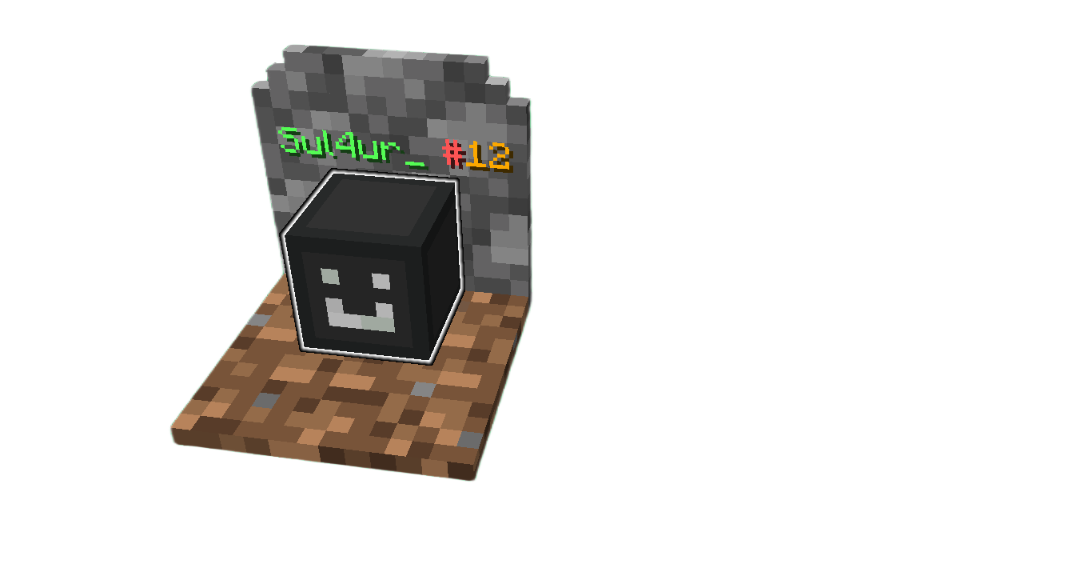
When you reach the location of your grave, you will see your head lying on the ground, along with a text display showing your name and your grave's ID, along with the grave design.
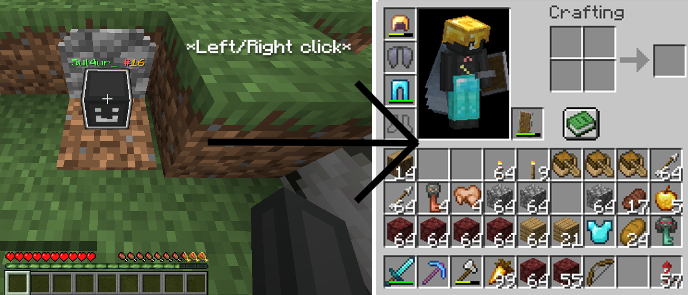
You can click on the grave to open he grave. All the items will be put in the exact same spot they were before you died, and you will collet 90% of the experience you've had before you died. If an item can't be put in your inventory, it will instead be dropped.
You can also "break a grave" by sneak + left clicking, where all items will just drop.
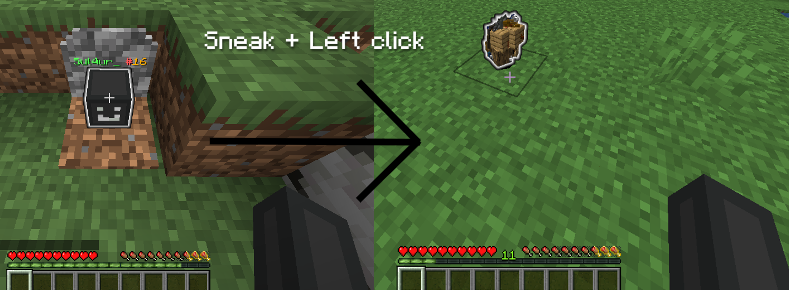
The items that are dropped from a grave being broken are invulnerable and can't be destroyed by things such as lava or explosions, and they take 45min to despawn. (Can be changed in the config.)
The items glow by default.
If a player has access to commands, they can enable admin mode by going into the configs (I'll show you how to do that), then to page 2.
A player with admin mode can do many things like recovering from a grave backup and viewing all information about graves regardless of what is set in the configs.
/trigger sgrave.help (Does not exist on older versions)
This is the command you should use if you have any problems with or questions about this data pack.
/trigger sgrave set <value>
Sends the coordinates of your grave to you.
Set the value to 1 to locate your last grave.
Set the value to 2 to locate your second last grave.
Set the value to 3 to locate your third last grave.
and so on...
Any players (non-OPs and OPs) can use this command. /trigger sgrave.grave_info set <value>
Shows info about the grave with the ID of the value you entered. It shows a full detail of the grave, including the items and experience stored inside, the location, creation time, despawn time, etc. You can also view others' grave info and information about broken graves as well.
/trigger sgrave.grave_info set 4. /trigger sgrave.recover_items set <value>
Recovers your items from a backup. Replace <value> with the grave ID you want to recover from.
Only players with Admin mode enabled can use this command.
/trigger sgrave.give_key
Gives you a grave key. It can be used to open anybody's graves, even if Robbing is set to false.
Only players with Admin mode enabled can use this command.
/function sul4ur:sgrave/config
Opens the config menu. Only OPs can use this command.
/function sul4ur:sgrave/clean_uninstall
Uninstalls this data pack. Only Ops can use this command.
Note: Make sure you do not run any functions that start with sgrave:, since they are all internal functions and using them can have bad consequences. If it starts with sul4ur:sgrave/, then you can run them safely.
These criterions must be met so that the head of the skin can show yours:
This is because you're not using the required resource pack. This shouldn't happen if you're using the MOD version.
Why does clicking on the grave do nothing?This grave data pack might not be compatible with Paper, Spigot, Bukkit, etc. If you're using any of these, then that might be the reason.
When I tried to click on the grave, my hand suddenly disappeared for a moment and now when I click on the grave it does nothing.
This is because of an issue with the Carry On mod.
To fix this, press F3+B, look for a white mini-box, use shift + right click, place it down right on the grave and then press F3+B again.
This is because you're not using the required resource pack. This shouldn't happen if you're using the MOD version.
 |
If you found a bug, this is where you should report it.
Also if you came up with a cool idea that makes the data pack better, this is where you should go. |
| If you have any questions, any problems with the data pack, etc..., you can join our Discord server! You can also report bugs and suggest features here if you can't do it on github.
|  |
This work is licensed under CC BY-NC-ND.

One exception is made for video content, which can be monetized. However, you must give appropriate credit in the description of your video.