Logo
MINECRAFTBIBLE
Items
Items

All game items

Blocks
Blocks

Building blocks

Mobs
Mobs

Creatures & monsters

Biomes
Biomes

World biomes

Structures
Structures

Generated structures

Recipes
Recipes

Crafting guides

Advancements
Advancements

Achievements

Loot Tables
Loot Tables

Drop rates

Tags
Tags

Item groupings

All Versions
View all data →
Capes
Cape ArchiveNEW

Browse rare Minecon capes, OptiFine capes, and custom capes from players worldwide

Browse

Player Database
Player DatabasePopular

Search any player

Skin Browser
Skin Browser

Browse & download skins

Cape Gallery
Cape GalleryNEW

Minecon & OptiFine capes

Seed Vault
Seed Vault

Curated seeds

Learn

Guides
GuidesNew

Tutorials & tips

Blog
Blog

News & updates

Community

Community Hub
Community HubHub

Posts, discussions & more

All Versions
View community →
Seed Analyzer
Seed Analyzer

World seed analysis

Loot Explorer
Loot Explorer

Drop rates

Crafting Calculator
Crafting Calculator

Material planning

Enchant Calculator
Enchant Calculator

Probability math

Redstone Lab
Redstone Lab

Signal timing

Trading Profit
Trading Profit

Villager ROI

All Versions
View all tools →
Mods
Mods

Browse all mods

Plugins
Plugins

Server plugins

Resource Packs
Resource Packs

Textures & sounds

Shaders
Shaders

Visual enhancements

Datapacks
Datapacks

World logic

Scanner
Mod Intelligence

Scan & analyze any mod

All Versions
View all mods →
Loading...
IntroductionIntroductionVersion HistoryVersion HistoryGuidesGuidesBlog & NewsBlog & News
ItemsItemsBlocksBlocksMobsMobsRecipesRecipesBiomesBiomesStructuresStructuresAdvancementsAdvancementsLoot TablesLoot TablesTagsTags
ModsModsPluginsPluginsResource PacksResource PacksShadersShadersDatapacksDatapacks

MinecraftBible

The Ultimate Wiki

Logo
MINECRAFTBIBLE

The ultimate Minecraft reference. Every item, block, mob, and recipe documented with precision.

Community

  • Skin Browser
  • Cape Gallery
  • Seed Vault
  • Blog
  • Guides

Database

  • Items
  • Blocks
  • Mobs
  • Recipes
  • Biomes
  • Structures

Tools

  • Seed Analyzer
  • Mod Intelligence
  • Crafting Calculator
  • Enchant Calculator

Mods & Packs

  • Mods
  • Plugins
  • Resource Packs
  • Shaders
  • Datapacks

Site & Legal

  • About
  • Authors
  • Editorial Policy
  • Corrections
  • Contact
  • Privacy Policy
  • Terms of Service
  • DMCA
  • Sitemap

© 2026 MinecraftBible. Not affiliated with Mojang or Microsoft.

PrivacyTermsContact
CraftTweaker GUI
ModMIT

CraftTweaker GUI

Allows editing and managing edited recipes for CraftTweaker

9.3K
Downloads
25
Followers
5 months ago
Updated
📦
7
Versions
managementutilityfabricneoforge
Download Latestv0.3.1View on Modrinth

📖About CraftTweaker GUI

With CraftTweaker GUI you can easily create new recipes or edit existing ones. When you are done, you can export your recipes to CraftTweaker and they will work after a simple reload. The recipes you changed are saved, so you can always see a list of changed recipes and also edit them again. CT GUI is completely client-side and does nothing on a server.

How does it work?

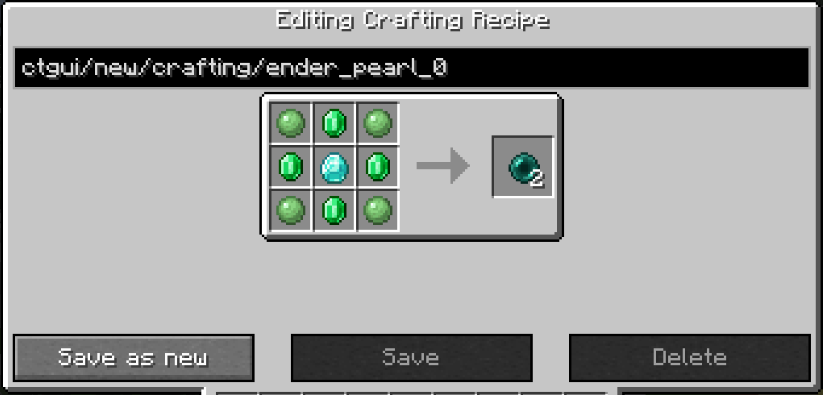
To start editing a recipe, you first need to open EMI (or JEI but EMI is recommended) and either click on the plus icon next to the category name, to create a new recipe, or click on the CT GUI icon next to each recipe to edit the recipe. In the editing screen, you can drag and drop items from EMI or the recipe itself into slots of the recipe. You can right-click slots to delete the item inside and scroll while hovering over them to increase or decrease the amount. On the bottom left, you can create a new Tag-Ingredient and drag it into the recipe. Some recipes also have extra options that you can configure on the side, for example shapeless when creating crafting recipes. Over the recipe itself you can change the recipe id, it will also be assigned automatically when you give the recipe an output unless you changed it before. Under the recipe you have the option to delete the original recipe you are editing, edit/replace it with the recipe you made or just create a new recipe without affecting the original one. Even when you have not exported your recipe, it will already be visible in EMI but not actually work.

Managing changed recipes

After editing a recipe or when clicking the CT button in the pause menu, you get to the changed recipes list. There you can see all changes you made and filter for the ones you have not exported yet. This is also the place to delete or edit changes you made and export them to CraftTweaker. You can also disable the edit mode and the pause menu button here or in the config.
View the full list of supported recipe types here

The recipe editing screen with a custom shaped recipe for ender pearls

Tag editing is a bit special because it is not an actual recipe. Instead of the recipe id you enter the name of the tag and because Emi does not display tags with one or no items you have to create a new tag with the same name to add items to those.

One of the things that are disabled in the editing screen, is tag collapsing, so when editing the recipe for iron doors for example, you will see that it actually accepts the tag for iron ingots not just iron ingots themselves. You can also enable this everywhere in the config. This only works in EMI.

👥 Team & Contributors

Bommels05
Bommels05Owner

⚙️ Compatibility

Environment
💻 Client-side
Loaders
fabricneoforge
Minecraft Versions
1.21.1

🔗 Links

Modrinth Page