Logo
MINECRAFTBIBLE
Items
Items

All game items

Blocks
Blocks

Building blocks

Mobs
Mobs

Creatures & monsters

Biomes
Biomes

World biomes

Structures
Structures

Generated structures

Recipes
Recipes

Crafting guides

Advancements
Advancements

Achievements

Loot Tables
Loot Tables

Drop rates

Tags
Tags

Item groupings

All Versions
View all data →
Capes
Cape ArchiveNEW

Browse rare Minecon capes, OptiFine capes, and custom capes from players worldwide

Browse

Player Database
Player DatabasePopular

Search any player

Skin Browser
Skin Browser

Browse & download skins

Cape Gallery
Cape GalleryNEW

Minecon & OptiFine capes

Seed Vault
Seed Vault

Curated seeds

Learn

Guides
GuidesNew

Tutorials & tips

Blog
Blog

News & updates

Community

Community Hub
Community HubHub

Posts, discussions & more

All Versions
View community →
Seed Analyzer
Seed Analyzer

World seed analysis

Loot Explorer
Loot Explorer

Drop rates

Crafting Calculator
Crafting Calculator

Material planning

Enchant Calculator
Enchant Calculator

Probability math

Redstone Lab
Redstone Lab

Signal timing

Trading Profit
Trading Profit

Villager ROI

All Versions
View all tools →
Mods
Mods

Browse all mods

Plugins
Plugins

Server plugins

Resource Packs
Resource Packs

Textures & sounds

Shaders
Shaders

Visual enhancements

Datapacks
Datapacks

World logic

Scanner
Mod Intelligence

Scan & analyze any mod

All Versions
View all mods →
Loading...
IntroductionIntroductionVersion HistoryVersion HistoryGuidesGuidesBlog & NewsBlog & News
ItemsItemsBlocksBlocksMobsMobsRecipesRecipesBiomesBiomesStructuresStructuresAdvancementsAdvancementsLoot TablesLoot TablesTagsTags
ModsModsPluginsPluginsResource PacksResource PacksShadersShadersDatapacksDatapacks

MinecraftBible

The Ultimate Wiki

Logo
MINECRAFTBIBLE

The ultimate Minecraft reference. Every item, block, mob, and recipe documented with precision.

Community

  • Skin Browser
  • Cape Gallery
  • Seed Vault
  • Blog
  • Guides

Database

  • Items
  • Blocks
  • Mobs
  • Recipes
  • Biomes
  • Structures

Tools

  • Seed Analyzer
  • Mod Intelligence
  • Crafting Calculator
  • Enchant Calculator

Mods & Packs

  • Mods
  • Plugins
  • Resource Packs
  • Shaders
  • Datapacks

Site & Legal

  • About
  • Authors
  • Editorial Policy
  • Corrections
  • Contact
  • Privacy Policy
  • Terms of Service
  • DMCA
  • Sitemap

© 2026 MinecraftBible. Not affiliated with Mojang or Microsoft.

PrivacyTermsContact
Colorful Trims
ModCC-BY-4.0

Colorful Trims

Adds the ability to use dyes in the smithing table

71.9K
Downloads
160
Followers
7 months ago
Updated
📦
19
Versions
decorationequipmentdatapackfabricforgeneoforgequilt
Download Latestv1.10.1+modView on Modrinth

📖About Colorful Trims

Information

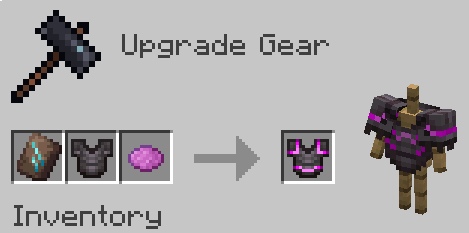
Use any dye along with trims to customize your armor. This works with all trims and armor like how you would do it with any other material.

You need the resource pack in order for you to see the custom armor trims. Without it you would see the missing texture texture. If something doesn't work check the FAQ below. If you find any bugs you can report them to my discord server.

1.21.5+ Note

In order to be able to trim items, you may need to drop them on the ground first.
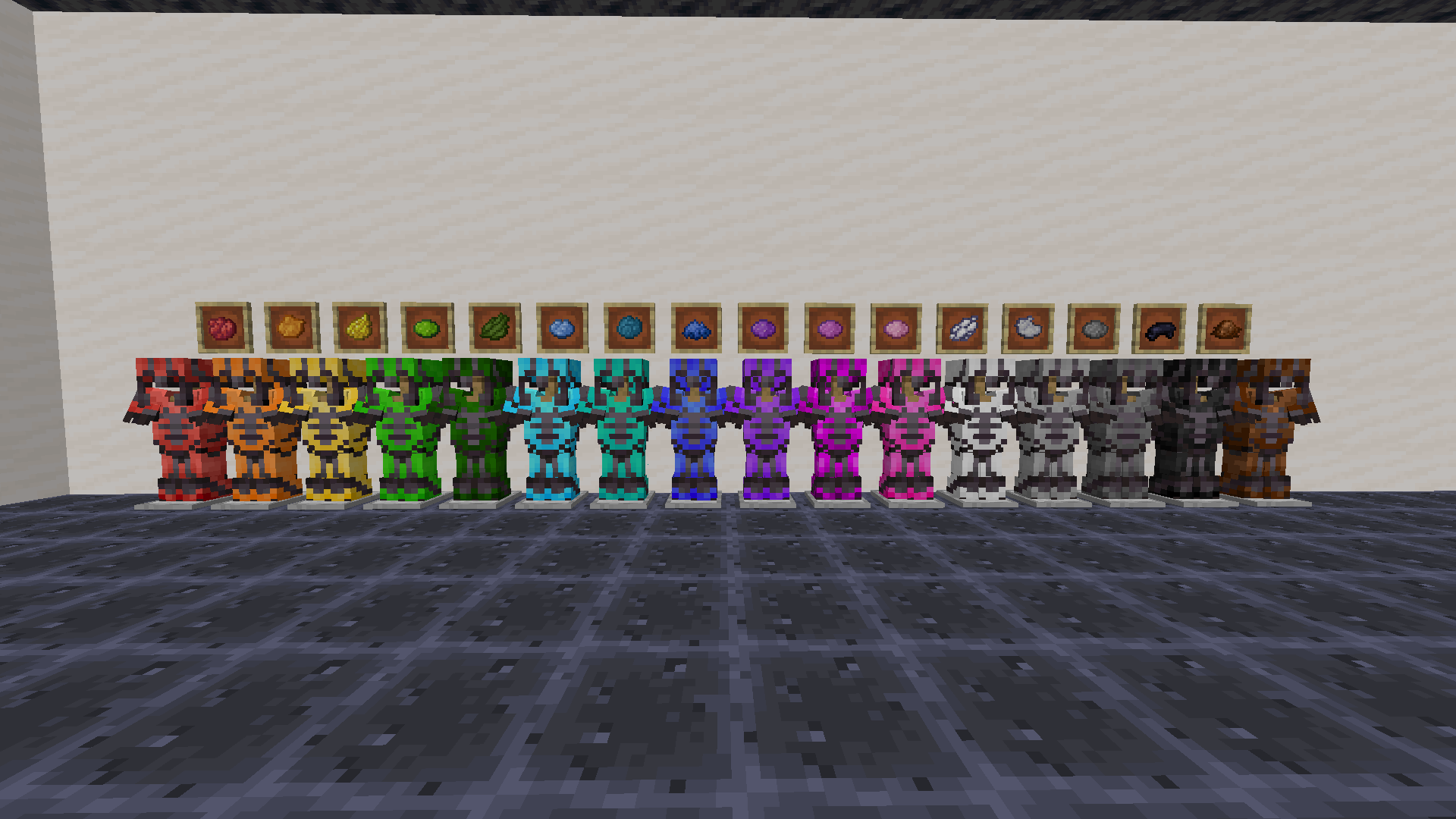
Trims Showcase

How to use dyes as trims

FAQ

Q: Why does it have a red X over the smithing table when trying to craft it?
A: Drop the dye on the ground, pick it up, and try it again. If that doesnt work restart the server. If neither of those worked report it in the discord

Q: Why can't I put the dye in the smithing table?
A: If it still doesn't work make sure you have installed the datapack correctly. If you are sure you did then report it in the discord

Q: Why do all the dye recipes not work?
A: You have to restart your world/server/realm. It should then work after you do that

Q: I get a missing texture when trying to use this how do I fix it?
A: Make sure to download the resourcepack

Q: Where can I download the resourcepack?
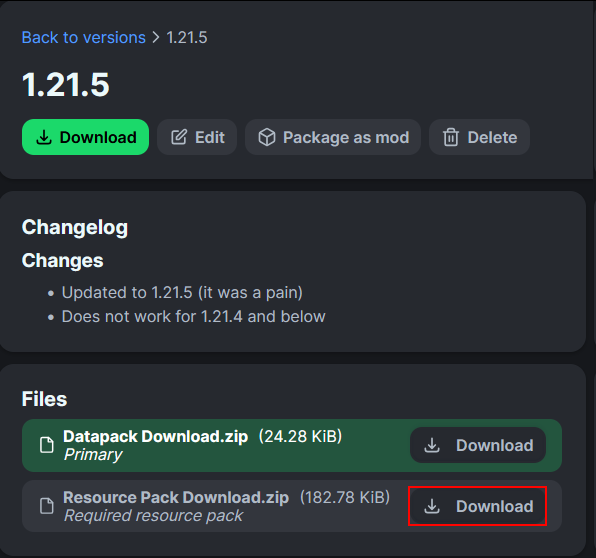
A: Those who click the big download button at the top of the screen are only prompted to download the datapack and not the resourcepack. Modrinth does not show both of them in that menu. You instead have to go to the versions tab.

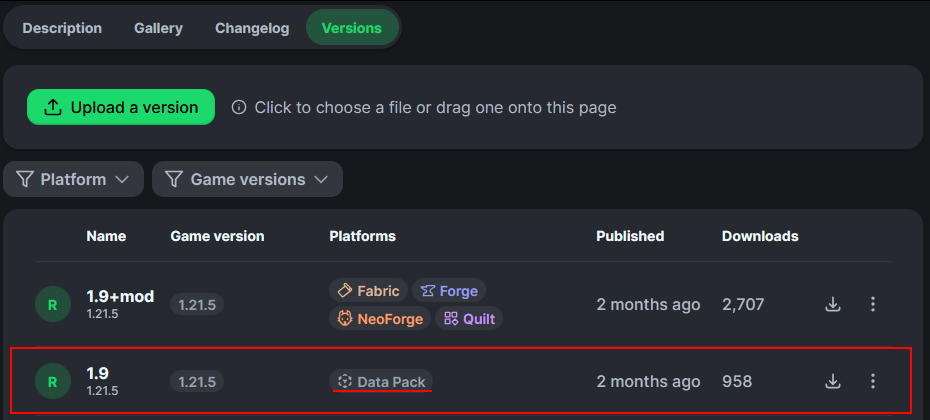
Where to download the resourcepack

First you have to go to the versions tab

Go to the Versions Tab

Then you go to the version you want

Go to the latest version

Then underneath the datapack download is the resourcepack download

Click the 2nd download button

How to install

  • On the server / singleplayer install the datapack and enable it. Restart the server afterwards for the smithing table to work.

  • On the client equip the resource pack in order to see the textures. This is required to do.

👥 Team & Contributors

Bluebird
BluebirdOwner

⚙️ Compatibility

Environment
🖥️ Server-side
Loaders
datapackfabricforgeneoforgequilt
Minecraft Versions
1.21.11

🔗 Links

Modrinth Page