


ModGPL-3.0-only
Chat Tools
Timestamp, translators, notifier, macros, chat bubbles, chat filter; everything you need is here!
2.4M
Downloads
206
Followers
5 months ago
Updated
📦
30
Versions
📖About Chat Tools
🔖Help Needed🔖
- New Translations
- New Web Machine Translators
Feel free to make a PR on Github.
📋 Overview
Chat Tools is a highly customizable Minecraft client mod that supports various features, allowing them to interoperate through commands and more.
📖 Glossary and Technical Details
- Session Identifier (Chat Tools-specific term) is a string that, in single-player mode, corresponds to the current save name, and in multiplayer mode, corresponds to the server address. Related Regular Expressions use the
matches()method for matching. - Pattern (General term) refers to the Regular Expression pattern. Chat Tools uses the MULTILINE mode for Regular Expressions and matches them using the
find()method. - Chat Tools maintains multi versions by using macro replacement. The same version of Chat Tools may exhibit slight differences between Minecraft versions.
- When processing player messages, Chat Tools removes color codes (§.).
- By enabling Advanced Tooltips (F3+H), you can hover over configuration items on the configuration page to view their keys, default values, and other details.
🛠️ Commands
/chattools on- Enable the mod./chattools off- Disable the mod./chattools opengui- Open the configuration page./chattools download- Download addons./chattools regex_checker <pattern> [<test_content>]- Without test content: check if the pattern is a valid regex. With test content: validate the pattern and test if it matches the content./chattools send_to_client text <text_JSON_component>- Send specific text to the client chat bar./chattools send_to_client actionbar <text_JSON_component>- Display specific text on the client actionbar./chattools config openfile- Open the configuration file (editing requires a game restart to apply changes)./chattools config get <key>- Retrieve the value of a specific configuration key for the current session./chattools config set <key> <value> [<save>]- Set the value of a specific configuration key. If save is set to true, the changes will also be saved to the file./chattools config toggle <key> [<save>]- Toggle the state of a boolean-type configuration key. If save is set to true, the changes will also be saved to the file.
✨ Function introduction
For elaborate descriptions and examples, please see >>FAQ<<.
General Settings
These are the core settings for Chat Tools:
- Show Timestamp
Adds a timestamp to each message.
- Restore Messages
Recovers messages from previous sessions. - Nickname Hider
Conceals your real nickname from your view.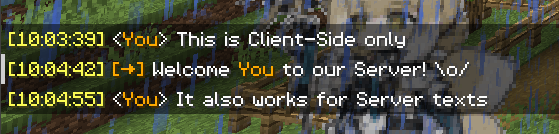
- Translator
Press Shift + Tab in the chat bar to start translating. - Enable Chat History Navigator
Use Ctrl + F to start navigating in chat!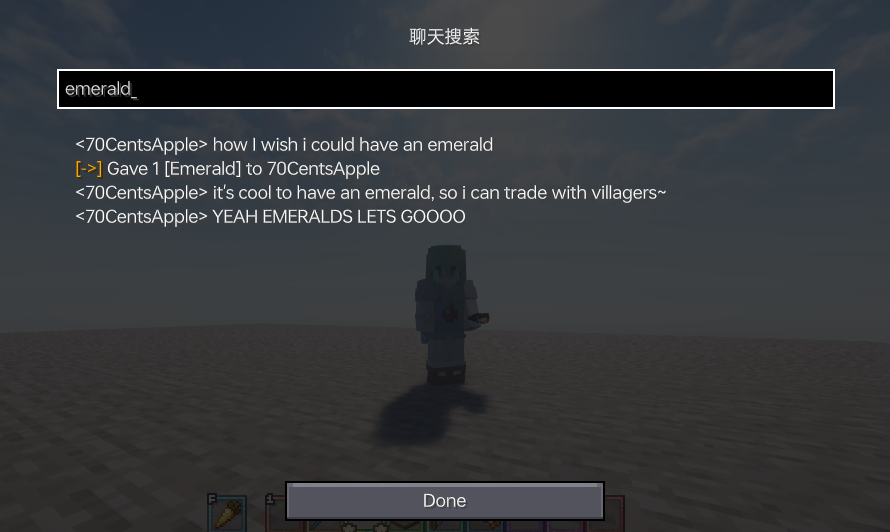
- Max History Length
Sets the maximum number of chat messages stored.
Notifier Settings
Various chat alert features:
- Toast Notification

- Sound
Supports custom sound effects. - Actionbar
Displays alerts in the action bar. - Highlight
Supports custom highlighting prefixes.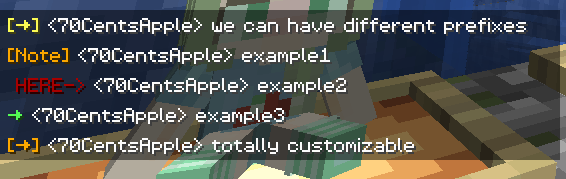
- Allow List
Messages matching this list are allowed. - Ban List
Messages matching this list are blocked (higher priority than Allow List).
Formatter Settings
Customize your messages using specified patterns. Apply different rules for different servers. See Bubble Rules.
- Pattern
Automatically formats messages based on the specified style.
For example:&e{text}makes your message gold on servers supporting the color prefix '&'.&e{text} ~(ovo)~adds a personalized suffix.My coordinates are: {pos}replaces{pos}with your current coordinates. - Auto-Disable for Matching...
In some cases, you don't want your text to be formatted.
This includes (but isn't limited to):
Item counts orallwhen selling items to the Chest Shop;
Commands starting with special characters.
The default RegEx pattern^\d+$|^[.#%$/].*|\ball\bcovers most cases.
You can modify or add more as needed.
Chat Keybindings
Use hotkeys for frequently used commands:
- Trigger Last Command Hotkey
Press a set hotkey to repeat the previous command.
For example:
While playing a Parkour map, do F3+C and activate it for a time, then you can quickly go back to the recorded point location every time you press the hotkey. - Command Keybindings
Assign hotkeys to frequently used commands.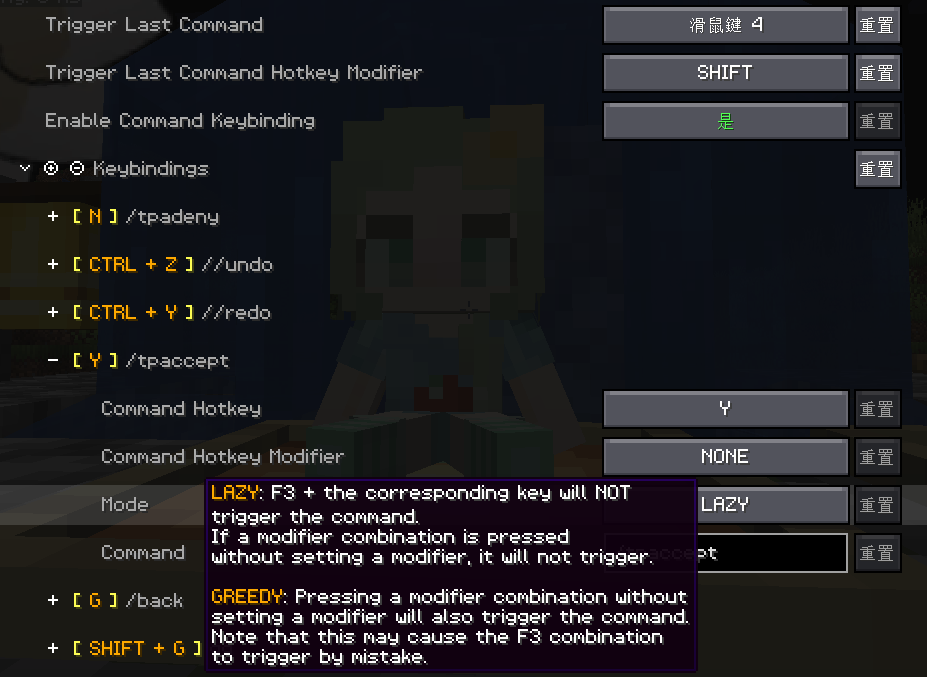
Bubble Settings
- Enable Chat Bubbles
Displays a chat bubble over your head.
- Bubble Rules
Apply different bubble rules on different servers.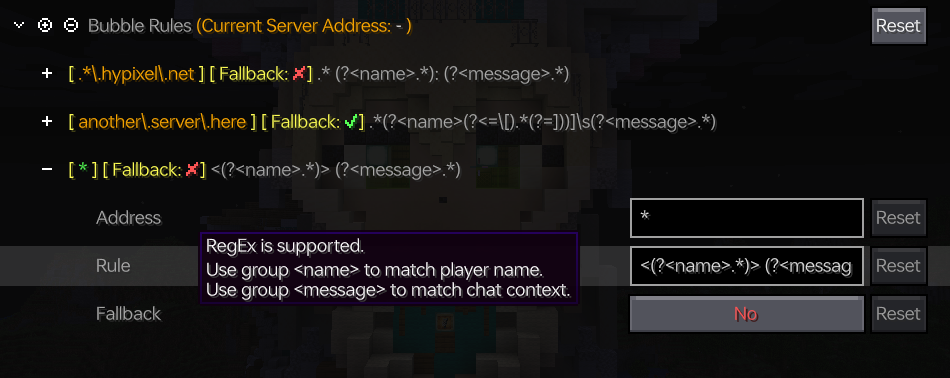
Responder Settings
Warning: Before using this feature on a server, please check with other players and admins first!
- Enable Responder
Automatically responds to others' messages. - Responder Rules
Apply different responder rules on different servers.
Chat Filter Settings
- Enable Chat Filter
Filter chat messages based on specific rules. - Filter Rules
If any of the patterns in this list matches an incoming message, the message will be filtered.